There are two apps for Mozilla, Opera and for Chrome that does the magic. I will recommend that you try both of them and see which one you like the most.
Recover Old FaceBook Chat:
This add-on will replace the new social chat window with the older one. You can download the Chrome extension by clicking here

Facebook Chat Sidebar Disabler:
This add-on performs the exact same operation but with a different style. This one works for smart phones like IPhone or android because it has an Opera version. After installing the add-on in order to toggle between old-style chat and new-style chat, use the Options menu in the buddy list.
Click here To Download the Opera Version
Click here To Download the Chrome Extension
 Computer Trick 01

To Delete “Password” set for “Administrator”
- Take away the hard disc from the computer u want lo log-in.
- Fit it to another computer as “secondary Bootable Device”.
- Log in to windows.
- Go to “windows”→”system32” →”config”.
- Delete “sam.exe” and “sam.log”.
- Now shut down that computer and take out the just fitted hard drive.
- Fit back the hard drive to the computer and log in.
Note: This trick works only when the hard drive is in FAT format.
Computer Trick 02
To View all the cards in windows In-built game “Hearts” you must edit your registry carefully.
- Go to the “Registry Editor” (“Start” → “Run” → Type “regedit”→ Enter).
- Go carefully step by step in the left panel as directed below, “HKEY_CURRENT_USER” → ”Software” → ”Microsoft” → ”Windows” → ”Current Version” → ”Applets” → ”Hearts.
- Right Click on the right panel → “New String value” and name it as “ZB”
- Open “ZB”. Enter “42″. Close the Registry Editor.
- Whenever you want to view all the cards in HEARTS, press [Control]+[Alt]+[Shift]+[F12].
Computer Trick 03
To create Nameless Folders,
- Right click on the folder you want to see nameless.
- Click on “Rename” option.
- Holding the [ALT] key press 0160 from the numpad at the right side of your keyboard. (do not type the numbers from the numbers above the character keys).
- Press Enter. The nameless folder has been created.
- If you want to create another nameless folder in the same directory, then select another folder and rename as per step three and doing nothing repeat the step three.
Computer Trick 04
To block a website without requiring any software or firefox filters. Just follow the steps,
- Go to C: WINDOWS → system32 → driversetc.
- The file named “hosts” with no extension can be found.
- Open it with Notepad.
- Reach to the bottom of the page. And locate the line “127.0.0.1 localhost”.
- Add next line next to that line “127.0.0.1 http://www.ABCD.com/ localhost”. Where ABCD is the site you want to block. Now open the browser and check it.
Computer Trick 05
To Lock Folders without using any type of Software program,
- Just copy the codes given below,
cls
@ECHO OFF
title Folder Locker
if EXIST “Control Panel.{21EC2020-3AEA-1069-A2DD-08002B30309D}” goto UNLOCK
if NOT EXIST Locker goto MDLOCKER
:CONFIRM
echo Are you sure u want to Lock the folder(Y/N)
set/p “cho=>”
if %cho%==Y goto LOCK
if %cho%==y goto LOCK
if %cho%==n goto END
if %cho%==N goto END
echo Invalid choice.
goto CONFIRM
:LOCK
ren Locker “Control Panel.{21EC2020-3AEA-1069-A2DD-08002B30309D}”
attrib +h +s “Control Panel.{21EC2020-3AEA-1069-A2DD-08002B30309D}”
echo Folder locked
goto End
:UNLOCK
echo Enter password to Unlock folder
set/p “pass= >”
if NOT %pass%== PASSWORD goto FAIL
attrib -h -s “Control Panel.{21EC2020-3AEA-1069-A2DD-08002B30309D}”
ren “Control Panel.{21EC2020-3AEA-1069-A2DD-08002B30309D}” Locker
echo Folder Unlocked successfully
goto End
:FAIL
echo Invalid password
goto end
:MDLOCKER
md Locker
echo Locker created successfully
goto End
:End
- Paste the copied code in a notepad and change the word “PASSWORD” (in the line, if NOT %pass%== PASSWORD goto FAIL ) with your password which you want to set.
- Save the file as XYZ.bat where XYZ is any arbitrary name selected by you.
- A batch file is immediately created where you have saved the XYZ.bat file.
- A new folder named “Locker” is created here after double clicking the XYZ.bat file.
- Add the files or folders you want to lock into the newly created folder.
- Again double click XYZ.bat.
- Type “Y” or “y”.
- The locker is locked and hidden.
- If you want to unlock it, just double click XYZ.bat and enter the password in the appeared window.
Keyboard Tricks for Windows XP Users
Keyboard Trick 1 : High Contrast
If you want to enlarge the font of all the opened windows in your computer and change colors to high contrast, then you can use this keyboard trick. To use it, you have to press Shift, Alt and PrntScrn button together in your keyboard, [Shift]+[Alt]+[PrntScrn]. After that a window will open in the screen, click on ‘ok’ button or simply press the enter button on your keyboard.
Keyboard Trick 2 : Rotate Screen
If you want to rotate the screen or desktop of your computer, you can use this keyboard trick. (Note: This trick varies machine to machine depending on graphics card and video driver). To rotate the screen, press [ctrl]+[Alt]+[up/down/left/right].
Keyboard Trick 3 : Mass Control Open Windows
It will help you to select different program or windows. To do this u have to press [Ctrl] + select items from the taskbar, right click on the selected item.

Keyboard Trick 4 : Switch Between Running Programs
When you want to jump to the next application within an open window, you can use this. To use this press [Tab] button on the keyboard and when you will reach your desired place simply release the button. You can switch between running program by pressing [Alt]+[Tab].
Keyboard Trick 5 : Bypass Recycle Bin
If you want to delete any file from your computer without sending it to the recycle bin, press [Shift]+[Delete], after selecting the file. A window will open, click on ‘Yes’ button or press ‘Enter’.
Keyboard Trick 6 : Show Desktop or Restore Open Window
It helps you to minimize all open windows and show your desktop. To do this, you have to press [Windows]+[D].
Keyboard Trick 7 : Lock System
You can lock and protect your computer easily by this keyboard trick, and when you restart your computer, all the applications will still be running and the windows will still be left as previous. To do this press [Windows]+[L].
Keyboard Trick 8 : Undo and Redo
If you want to undo your changes press [Ctrl]+[z] and if you need to redo your changes press [Ctrl]+[y]. These shortcut keys are very useful feature of the keyboard.
Keyboard Trick 9 : Run Command Prompt as Administrator
To run command prompt as administrator, press [Windows]+[R], then type your desired command, then press [Ctrl]+[Shift] and press ‘Enter’.
Keyboard Trick 10 : To Create Your Own Keyboard Tricks
There are few situations when you need to access any file or folder frequently. For this, you can create a keyboard shortcut to access that particular file or folder. To do this, you have to create an actual shortcut on your desktop and then right click on the application and select ‘properties’. Then a window will open; press any key on the ‘shortcut key box’. Now you can use that shortcut key to open that file.
Keyboard Tricks for Windows 7 Users
[Windows] + [T] OR [Windows] + [SHIFT] + [T]
This shortcut key will help you to move the focus to front or back on the taskbar.
[Windows] + [B]
You can focus on the ‘show hidden icons’ button on the system tray by using this keyboard trick.
[Windows] + [1] THROUGH [Windows] + [9]
This launches first through ninth icon on the taskbar, including items pinned to the taskbar.
[Windows] + [SHIFT] + [1] THROUGH [Windows] + [SHIFT] + [9]
This starts new instance of the respective taskbar icon.
[Windows] + [Ctrl] + [1] THROUGH [Windows] + [Ctrl] + [9]
This cycles through the multiple instances of the respective icon.
[Windows] + [Alt] + [1] THROUGH [Windows] + [Alt] + [9]
This opens jump list for respective icon.
Multiple Monitors:- [Windows] + [SHIFT] + right arrow OR [Windows] + [SHIFT] + left arrow
You can use this keyboard trick to move any selected icon, one monitor to another.
[Windows] + [P]
This keyboard trick will help you to select “presentation display mode”.
Magnifier : [Windows] + [+] OR [Windows] + [-]
By using this shortcut key you can zoom in or zoom out of your computer screen and activate Windows Magnifier.
[Ctrl] + [Alt] + [D]
You can switch to “docked mode” by using this keyboard trick.
[Ctrl] + [Alt] + [L]
By using this key you can switch to “lens mode”.
[Ctrl] + [Alt] + [F]
Switch from “docked” or “lens” mode back to “full screen” mode.
[Ctrl] + [Alt] + [I]
You can invert colors by this keyboard trick.
[Windows] + [Esc]
Using this shortcut key you can exit magnifier view.
[Windows] + [G]
This cycles through desktop gadgets.
[Windows] + [X]
This launches Windows Mobility Center especially useful if you are working on a laptop.
Keyboard Tricks for MS Office 2010
There are some keyboard tricks bellow; used in MS Office 2010:-
Function Keystroke
Function Keystroke
Copy – Ctrl+C
Cut – Ctrl+X
Find - Ctrl+F
Go To – Ctrl+G
Help – F1
Hyperlink – Ctrl+K
New - Ctrl+N
Open - Ctrl+O
Cut – Ctrl+X
Find - Ctrl+F
Go To – Ctrl+G
Help – F1
Hyperlink – Ctrl+K
New - Ctrl+N
Open - Ctrl+O
Keyboard Tricks For Firefox
[Ctrl] + [1] to [9]
You can quickly reach to a specific tab if you know its position without scrolling through all the open tabs. For example, clicking [Ctrl] + [6] will open to tab number 6 (from the left). With [Ctrl] + [9] you can jump to the last tab though the other tabs are opened.
[Ctrl] + [Tab] or [Ctrl] + [SHIFT] + [Tab]
This is very useful shortcut to move between tabs.
[/] or [']
By clicking the [/] key before starting to type your search, Firefox will only find in text. Similarly, clicking the ['] key will only find links.
[Ctrl] + mouse wheel
This can quickly increase or decrease the font size for better reading.
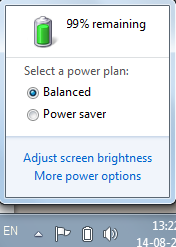 Maintaining optimal battery life is a difficult task for laptop users . By using optimized power setting on your windows OS and following some maintenance steps you can maximize the battery life of your laptop or any other mobile PC.
1. Optimize power settings
Display and the hard disk are the two biggest power consumer of your laptop’s battery by chosing the right power plan you can make your battery last long . A power plan is a collection of hardware and system settings that control how your mobile PC manages power.Here are some best power plans for your windows operating systemWindows 7
Windows 7 has two default power plans The Balance Power Plan which Automatically balances performance with energy consumption on capable hardware. And the power saver plan which Saves energy by reducing your computer’s performance where possible. You can select any power plan according to your need by going to your laptop’s notification area on the windows task bar .
Windows Vista
Windows Vista has 3 power plans
1. Balanced : Offers full performance when you need it but conserves power when the computer is idle.
2. Power Saver :The best choice for extending battery life. The cost, however, is slower performance.
3. High Performance : Maximizes system performance at the expense of battery life.
Click on the battery icon at the notification area and select Balanced or Power saver mode according to your performance requirement
Windows XP
Windows XP has two power saver mode Portable/Laptop power scheme which Minimizes the use of power to conserve your battery but adjusts to your processing needs so that the system speed is not sacrificed. The other one is Max battery power scheme which Minimizes power use but does not adjust as your processing demands change. You should use Max Battery only in situations that require minimal processing, such as reading documents and taking notes in a meeting.
Go to the control panel and click on Performance and maintenance then click on power options On the Power Schemes tab of the Power Options Properties dialog box, click the arrow under Power schemes, and then click Max Battery.
2. Make use of hibernate , sleep and standby
Various windows operating system provides various power saving states . Windows 7 offers Sleep and hibernation (deep sleep ) . Windows Vista offers sleep and hybrid sleep (combination of sleep and hibernation) and windows XP offers standby (like sleep) and hibernation .In sleep state or standby state your display and hard disk turn off, and all open programs and files are saved in random access memory (RAM). In hibernation, your computer saves everything to your hard disk and then shuts down. When you restart the computer, your desktop is restored exactly as you left it. Hibernation uses less power than the sleep state (standby), but it takes a bit longer to resume.So if you are not going to use of laptop for a longer time use hibernation else use sleep or standby
3. Turn off Wireless Device
Wireless devices drain a significant amount of battery power .A lot of power can be saved by turning off your wireless device when you are not connected to a wireless network . Refer to your laptop’s instruction manual on how to turn off wireless device , as each mobile PC has different procedure . In most of the device this feature is available at the task bar .4. Keep minimum tools at the notification bar
Tools at the notification bar takes a significant amount of CPU . Battery power can be saved by minimizing the CPU usage .Look at the notification area of the taskbar and close any tools (or utilities) that are not necessary. Often, these tools are installed on the computer when you first receive it. Windows 7 users can also click the up arrow at the end of the notification area to see tools and utilities that are hidden but available.5. Adjust Screen Brightness
A lot of battery power can be conserved by reducing the screen brightness .To adjust your screen brightness, refer to the instructions from your laptop manufacturer.You can also set the screen to get blank when you are not using your laptop. You can further minimize power consumption by reducing the amount of time the computer is idle before the screen goes blank. The power schemes and power plans in Windows let you adjust your power settings to turn off the display after as little as one minute of inactivity.6. Add Memory
When your RAM is not sufficient to hold the necessary running programs , your system uses hard disk as thevirtual memory , which further drains the battery power . You can check the memory usage from the task manager , if your mobile PC is continuously using more memory than the available RAM , then you need to add more memory to your laptop .7. Turn off scheduled tasks
If you use scheduled tasks to run programs or scripts, or if you schedule other tasks to occur automatically at a preset time, specify that these tasks won’t be performed when the computer is running on battery power.How To Check Balance? The Basic Question Which Troubles you when you switch from one cellular network provider to other.
With The Increased number of cellular network providers each day, more People struggling to check balance in their mobile account, This Post has tried to cover information about your mobile network provider in India.
With The Increased number of cellular network providers each day, more People struggling to check balance in their mobile account, This Post has tried to cover information about your mobile network provider in India.
Reliance GSM

How to check Balance in Reliance GSM?
How to check Balance on Reliance GSM Mobile?
Dial *367# From Your Reliance Mobile to Check Account Balance.
Customer Care Number for Reliance GSM Mobile: Dial *333
How to check Balance on Reliance GSM Mobile?
Dial *367# From Your Reliance Mobile to Check Account Balance.
Customer Care Number for Reliance GSM Mobile: Dial *333
Tata Docomo

How to Check Balance in Tata Docomo?
How to Check Balance on Tata Docomo?
To Know Account Balance information dial *111# from your Tata Docomo Mobile.
Get Interactive Voice Call Balance Announcement by dialling 12525 from your Tata Docomo Mobile.
How to Check Balance on Tata Docomo?
To Know Account Balance information dial *111# from your Tata Docomo Mobile.
Get Interactive Voice Call Balance Announcement by dialling 12525 from your Tata Docomo Mobile.
Aircel

How to Check Balance in Aircel?
How to Check Balance on Aircel?
To Check your Balance in Aircel, Dial *125# from your Aircel Mobile.
For Voice Announcement of your balance, Dial 123
Customer Care Support Dial 121.
How to Check Balance on Aircel?
To Check your Balance in Aircel, Dial *125# from your Aircel Mobile.
For Voice Announcement of your balance, Dial 123
Customer Care Support Dial 121.

How to Check Balance in Idea?
How to Check Balance on Idea?
To Check Account Balance in your Idea Mobile Dial *130# from Your Idea Mobile.
Customer Care Number for Idea: 98*** 12345
[Replace *** with respective Phone Number Series]
How to Check Balance on Idea?
To Check Account Balance in your Idea Mobile Dial *130# from Your Idea Mobile.
Customer Care Number for Idea: 98*** 12345
[Replace *** with respective Phone Number Series]
Airtel

How to Check Balance in Airtel?
How to Check Balance on Airtel?
To Check Balance in Airtel Dial *123# from Your Airtel mobile.
Customer Care Support for Airtel: 121
How to Check Balance on Airtel?
To Check Balance in Airtel Dial *123# from Your Airtel mobile.
Customer Care Support for Airtel: 121
Vodafone

How to check balance in Vodafone?
How to check balance on Vodafone?
To Check Balance from your Vodafone Mobile Dial *111# .
Happy to Help Customer Care Support: 111
How to check balance on Vodafone?
To Check Balance from your Vodafone Mobile Dial *111# .
Happy to Help Customer Care Support: 111
BSNL

How to Check Balance in BSNL?
How to Check Balance on BSNL?
To Check Balance Dial *123# from your BSNL Prepaid Mobile.
How to Check Balance on BSNL?
To Check Balance Dial *123# from your BSNL Prepaid Mobile.


