 Computer Trick 01

To Delete “Password” set for “Administrator”
- Take away the hard disc from the computer u want lo log-in.
- Fit it to another computer as “secondary Bootable Device”.
- Log in to windows.
- Go to “windows”→”system32” →”config”.
- Delete “sam.exe” and “sam.log”.
- Now shut down that computer and take out the just fitted hard drive.
- Fit back the hard drive to the computer and log in.
Note: This trick works only when the hard drive is in FAT format.
Computer Trick 02
To View all the cards in windows In-built game “Hearts” you must edit your registry carefully.
- Go to the “Registry Editor” (“Start” → “Run” → Type “regedit”→ Enter).
- Go carefully step by step in the left panel as directed below, “HKEY_CURRENT_USER” → ”Software” → ”Microsoft” → ”Windows” → ”Current Version” → ”Applets” → ”Hearts.
- Right Click on the right panel → “New String value” and name it as “ZB”
- Open “ZB”. Enter “42″. Close the Registry Editor.
- Whenever you want to view all the cards in HEARTS, press [Control]+[Alt]+[Shift]+[F12].
Computer Trick 03
To create Nameless Folders,
- Right click on the folder you want to see nameless.
- Click on “Rename” option.
- Holding the [ALT] key press 0160 from the numpad at the right side of your keyboard. (do not type the numbers from the numbers above the character keys).
- Press Enter. The nameless folder has been created.
- If you want to create another nameless folder in the same directory, then select another folder and rename as per step three and doing nothing repeat the step three.
Computer Trick 04
To block a website without requiring any software or firefox filters. Just follow the steps,
- Go to C: WINDOWS → system32 → driversetc.
- The file named “hosts” with no extension can be found.
- Open it with Notepad.
- Reach to the bottom of the page. And locate the line “127.0.0.1 localhost”.
- Add next line next to that line “127.0.0.1 http://www.ABCD.com/ localhost”. Where ABCD is the site you want to block. Now open the browser and check it.
Computer Trick 05
To Lock Folders without using any type of Software program,
- Just copy the codes given below,
cls
@ECHO OFF
title Folder Locker
if EXIST “Control Panel.{21EC2020-3AEA-1069-A2DD-08002B30309D}” goto UNLOCK
if NOT EXIST Locker goto MDLOCKER
:CONFIRM
echo Are you sure u want to Lock the folder(Y/N)
set/p “cho=>”
if %cho%==Y goto LOCK
if %cho%==y goto LOCK
if %cho%==n goto END
if %cho%==N goto END
echo Invalid choice.
goto CONFIRM
:LOCK
ren Locker “Control Panel.{21EC2020-3AEA-1069-A2DD-08002B30309D}”
attrib +h +s “Control Panel.{21EC2020-3AEA-1069-A2DD-08002B30309D}”
echo Folder locked
goto End
:UNLOCK
echo Enter password to Unlock folder
set/p “pass= >”
if NOT %pass%== PASSWORD goto FAIL
attrib -h -s “Control Panel.{21EC2020-3AEA-1069-A2DD-08002B30309D}”
ren “Control Panel.{21EC2020-3AEA-1069-A2DD-08002B30309D}” Locker
echo Folder Unlocked successfully
goto End
:FAIL
echo Invalid password
goto end
:MDLOCKER
md Locker
echo Locker created successfully
goto End
:End
- Paste the copied code in a notepad and change the word “PASSWORD” (in the line, if NOT %pass%== PASSWORD goto FAIL ) with your password which you want to set.
- Save the file as XYZ.bat where XYZ is any arbitrary name selected by you.
- A batch file is immediately created where you have saved the XYZ.bat file.
- A new folder named “Locker” is created here after double clicking the XYZ.bat file.
- Add the files or folders you want to lock into the newly created folder.
- Again double click XYZ.bat.
- Type “Y” or “y”.
- The locker is locked and hidden.
- If you want to unlock it, just double click XYZ.bat and enter the password in the appeared window.
Keyboard Tricks for Windows XP Users
Keyboard Trick 1 : High Contrast
If you want to enlarge the font of all the opened windows in your computer and change colors to high contrast, then you can use this keyboard trick. To use it, you have to press Shift, Alt and PrntScrn button together in your keyboard, [Shift]+[Alt]+[PrntScrn]. After that a window will open in the screen, click on ‘ok’ button or simply press the enter button on your keyboard.
Keyboard Trick 2 : Rotate Screen
If you want to rotate the screen or desktop of your computer, you can use this keyboard trick. (Note: This trick varies machine to machine depending on graphics card and video driver). To rotate the screen, press [ctrl]+[Alt]+[up/down/left/right].
Keyboard Trick 3 : Mass Control Open Windows
It will help you to select different program or windows. To do this u have to press [Ctrl] + select items from the taskbar, right click on the selected item.

Keyboard Trick 4 : Switch Between Running Programs
When you want to jump to the next application within an open window, you can use this. To use this press [Tab] button on the keyboard and when you will reach your desired place simply release the button. You can switch between running program by pressing [Alt]+[Tab].
Keyboard Trick 5 : Bypass Recycle Bin
If you want to delete any file from your computer without sending it to the recycle bin, press [Shift]+[Delete], after selecting the file. A window will open, click on ‘Yes’ button or press ‘Enter’.
Keyboard Trick 6 : Show Desktop or Restore Open Window
It helps you to minimize all open windows and show your desktop. To do this, you have to press [Windows]+[D].
Keyboard Trick 7 : Lock System
You can lock and protect your computer easily by this keyboard trick, and when you restart your computer, all the applications will still be running and the windows will still be left as previous. To do this press [Windows]+[L].
Keyboard Trick 8 : Undo and Redo
If you want to undo your changes press [Ctrl]+[z] and if you need to redo your changes press [Ctrl]+[y]. These shortcut keys are very useful feature of the keyboard.
Keyboard Trick 9 : Run Command Prompt as Administrator
To run command prompt as administrator, press [Windows]+[R], then type your desired command, then press [Ctrl]+[Shift] and press ‘Enter’.
Keyboard Trick 10 : To Create Your Own Keyboard Tricks
There are few situations when you need to access any file or folder frequently. For this, you can create a keyboard shortcut to access that particular file or folder. To do this, you have to create an actual shortcut on your desktop and then right click on the application and select ‘properties’. Then a window will open; press any key on the ‘shortcut key box’. Now you can use that shortcut key to open that file.
Keyboard Tricks for Windows 7 Users
[Windows] + [T] OR [Windows] + [SHIFT] + [T]
This shortcut key will help you to move the focus to front or back on the taskbar.
[Windows] + [B]
You can focus on the ‘show hidden icons’ button on the system tray by using this keyboard trick.
[Windows] + [1] THROUGH [Windows] + [9]
This launches first through ninth icon on the taskbar, including items pinned to the taskbar.
[Windows] + [SHIFT] + [1] THROUGH [Windows] + [SHIFT] + [9]
This starts new instance of the respective taskbar icon.
[Windows] + [Ctrl] + [1] THROUGH [Windows] + [Ctrl] + [9]
This cycles through the multiple instances of the respective icon.
[Windows] + [Alt] + [1] THROUGH [Windows] + [Alt] + [9]
This opens jump list for respective icon.
Multiple Monitors:- [Windows] + [SHIFT] + right arrow OR [Windows] + [SHIFT] + left arrow
You can use this keyboard trick to move any selected icon, one monitor to another.
[Windows] + [P]
This keyboard trick will help you to select “presentation display mode”.
Magnifier : [Windows] + [+] OR [Windows] + [-]
By using this shortcut key you can zoom in or zoom out of your computer screen and activate Windows Magnifier.
[Ctrl] + [Alt] + [D]
You can switch to “docked mode” by using this keyboard trick.
[Ctrl] + [Alt] + [L]
By using this key you can switch to “lens mode”.
[Ctrl] + [Alt] + [F]
Switch from “docked” or “lens” mode back to “full screen” mode.
[Ctrl] + [Alt] + [I]
You can invert colors by this keyboard trick.
[Windows] + [Esc]
Using this shortcut key you can exit magnifier view.
[Windows] + [G]
This cycles through desktop gadgets.
[Windows] + [X]
This launches Windows Mobility Center especially useful if you are working on a laptop.
Keyboard Tricks for MS Office 2010
There are some keyboard tricks bellow; used in MS Office 2010:-
Function Keystroke
Function Keystroke
Copy – Ctrl+C
Cut – Ctrl+X
Find - Ctrl+F
Go To – Ctrl+G
Help – F1
Hyperlink – Ctrl+K
New - Ctrl+N
Open - Ctrl+O
Cut – Ctrl+X
Find - Ctrl+F
Go To – Ctrl+G
Help – F1
Hyperlink – Ctrl+K
New - Ctrl+N
Open - Ctrl+O
Keyboard Tricks For Firefox
[Ctrl] + [1] to [9]
You can quickly reach to a specific tab if you know its position without scrolling through all the open tabs. For example, clicking [Ctrl] + [6] will open to tab number 6 (from the left). With [Ctrl] + [9] you can jump to the last tab though the other tabs are opened.
[Ctrl] + [Tab] or [Ctrl] + [SHIFT] + [Tab]
This is very useful shortcut to move between tabs.
[/] or [']
By clicking the [/] key before starting to type your search, Firefox will only find in text. Similarly, clicking the ['] key will only find links.
[Ctrl] + mouse wheel
This can quickly increase or decrease the font size for better reading.
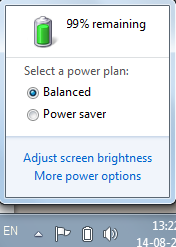 Maintaining optimal battery life is a difficult task for laptop users . By using optimized power setting on your windows OS and following some maintenance steps you can maximize the battery life of your laptop or any other mobile PC.
1. Optimize power settings
Display and the hard disk are the two biggest power consumer of your laptop’s battery by chosing the right power plan you can make your battery last long . A power plan is a collection of hardware and system settings that control how your mobile PC manages power.Here are some best power plans for your windows operating systemWindows 7
Windows 7 has two default power plans The Balance Power Plan which Automatically balances performance with energy consumption on capable hardware. And the power saver plan which Saves energy by reducing your computer’s performance where possible. You can select any power plan according to your need by going to your laptop’s notification area on the windows task bar .
Windows Vista
Windows Vista has 3 power plans
1. Balanced : Offers full performance when you need it but conserves power when the computer is idle.
2. Power Saver :The best choice for extending battery life. The cost, however, is slower performance.
3. High Performance : Maximizes system performance at the expense of battery life.
Click on the battery icon at the notification area and select Balanced or Power saver mode according to your performance requirement
Windows XP
Windows XP has two power saver mode Portable/Laptop power scheme which Minimizes the use of power to conserve your battery but adjusts to your processing needs so that the system speed is not sacrificed. The other one is Max battery power scheme which Minimizes power use but does not adjust as your processing demands change. You should use Max Battery only in situations that require minimal processing, such as reading documents and taking notes in a meeting.
Go to the control panel and click on Performance and maintenance then click on power options On the Power Schemes tab of the Power Options Properties dialog box, click the arrow under Power schemes, and then click Max Battery.
2. Make use of hibernate , sleep and standby
Various windows operating system provides various power saving states . Windows 7 offers Sleep and hibernation (deep sleep ) . Windows Vista offers sleep and hybrid sleep (combination of sleep and hibernation) and windows XP offers standby (like sleep) and hibernation .In sleep state or standby state your display and hard disk turn off, and all open programs and files are saved in random access memory (RAM). In hibernation, your computer saves everything to your hard disk and then shuts down. When you restart the computer, your desktop is restored exactly as you left it. Hibernation uses less power than the sleep state (standby), but it takes a bit longer to resume.So if you are not going to use of laptop for a longer time use hibernation else use sleep or standby
3. Turn off Wireless Device
Wireless devices drain a significant amount of battery power .A lot of power can be saved by turning off your wireless device when you are not connected to a wireless network . Refer to your laptop’s instruction manual on how to turn off wireless device , as each mobile PC has different procedure . In most of the device this feature is available at the task bar .4. Keep minimum tools at the notification bar
Tools at the notification bar takes a significant amount of CPU . Battery power can be saved by minimizing the CPU usage .Look at the notification area of the taskbar and close any tools (or utilities) that are not necessary. Often, these tools are installed on the computer when you first receive it. Windows 7 users can also click the up arrow at the end of the notification area to see tools and utilities that are hidden but available.5. Adjust Screen Brightness
A lot of battery power can be conserved by reducing the screen brightness .To adjust your screen brightness, refer to the instructions from your laptop manufacturer.You can also set the screen to get blank when you are not using your laptop. You can further minimize power consumption by reducing the amount of time the computer is idle before the screen goes blank. The power schemes and power plans in Windows let you adjust your power settings to turn off the display after as little as one minute of inactivity.6. Add Memory
When your RAM is not sufficient to hold the necessary running programs , your system uses hard disk as thevirtual memory , which further drains the battery power . You can check the memory usage from the task manager , if your mobile PC is continuously using more memory than the available RAM , then you need to add more memory to your laptop .7. Turn off scheduled tasks
If you use scheduled tasks to run programs or scripts, or if you schedule other tasks to occur automatically at a preset time, specify that these tasks won’t be performed when the computer is running on battery power.
 Ultimate Boot CD is a bootable recovery CD containing software used for repairing, restoring, or diagnosing almost any computer problem. Its goal is to be the most complete and easy to use free computer diagnostic tool. Almost all software included in Ultimate Boot CD are freeware utilities for Windows. Some of the tools inlcuded are "free for personal use" copies so users need to respect these licenses. A few of the tools included in UBCD are paid for and licensed software owned by UBCD4win. On occasion the developers work with software companies \ authors for permission to include their software in the download or have requested their software better support PE. Users can freely share copies of Ultimate Boot CD with friends but selling Ultimate Boot CD for a profit is not acceptable.
The developers have worked hard for many years helping people for free with this project, others should not make money from their hard work. If you are a dialup user having a hard time downloading Ultimate Boot CD, please visit the ordering page. UBCD is based on Bart's PE, which builds a Windows "pre-install" environment CD, basically a simple Windows XP booted from CD. It includes network support and allows you the ability to modify NTFS volumes, recover deleted files, create new NTFS volumes, scan hard drives for viruses, etc. The download includes almost everything you need to repair your system problems. Please note that this project has been put together to be the ultimate recovery cd and not a replacement OS (Operating System).
DOWNLOAD (Freeware) - 359 MB Windows (All)

Most of us might have experienced a situation when we forget our Windows administrator password.And we are not able to login into windows and access our all necessary data and programs.At that time the only solution that comes into or mind is the installation of fresh copy of windows but this will lead to loss of all data and files that are in the windows drive.There is also another way around using which you don’t need to install a fresh copy of windows and without losing any data.We are providing here the method to reset windows administrator password.This tutorial is only for the purpose of recovering your windows 7,xp or vista password.This should be used only when you forgot or lost your password and not for hacking into somebody else’s system.Using this hack you can reset your administrator password or leave it blank.
By using this tutorial
1.You donot need to know anything about your old password.
2.You can unlock locked or disabled accounts.
3.Also edit the registry.
The requirements for using this method are:-
1.Blank CD/floppy disk.
2.Access to Internet.
3.Cd or floppy writer
These requirements can be easily fulfilled by spending 15 minutes in cybercafe or at friends computer
Now here is the step by step tutorial with screenshots on how to hack administrator password in windows 7,vista or xp.
1.Download this small utility.
2.You will get an zipped file with ISO image in it.Extract his image using winrar or inbuilt windows software.
3.Put your blank cd in CD-ROM and burn this using Nero or any other image burner software.this is most important step and make sure you burn the ISO image properly.
4.Now put this CD in the system whose password is to be reset.
5.Restart your system and when prompted press enter to boot from the CD.

Note:If you do not get prompt of boot from CD.Then restart you system and press f2 or f6 or f8 or Esc key(anyone of them should work for your system) before the booting of the windows start.Now you will enter into bios and you should change the boot order from here with the first preference as CD-ROM.And again restart your system
6.Now the software will load automatically.It will ask you to select the windows drive and after that provide you with the option of resetting password.
If you have any queries or suggestion do not hesitate to ask.
 What does this software do?
As the name clearly suggest SpeedUpMyPc helps you make your computer faster by tweaking the settings of your windows.It analyses your CPU,ram ,process and uses its tools to optimize them for maximum performance.The interface of the software is very simple to use .
The actual price of the software is 39$ but using the promotional method I am giving you will get it for free with the serial key which is valid for 1 year.
Here is the trick to Download Full Version Uniblue SpeedUpMyPC 2011 with Serial License Key
Note:-Although you will recieve the licencse key for SpeedUpMyPc 2010 version but the same key also works for 2011 version.
2.Fill up your email address and details as you will recieve the licencse key at your email address.

3.Download the Trial version of Uniblue SpeedUpMyPc 2010 from offical website by clicking here
3.Download the Trial version of Uniblue SpeedUpMyPc 2010 from offical website by clicking here
4.Install the software And Click on the Register Now button at the bottom left of the program.
5.Enter the serial key from the email that you recieved from uniblue.
6.And thats it .Enjoy one year free license key

Recently I wrote about a special promotional offer from Panda in which you can get Panda Internet Security 2012 with 3 months valid serial key.Now I have found another panda promotional offer using which you can get 6 months valid serial key for Panda antivirus pro 2012.
Panda is running this special promotional offer in its USA facebook fanpage.The actual cost of Panda Antivirus Pro for 1 year is 40.99$.

How to get valid Panda Antivirus pro with valid 6 months key?
1.Login into your Facebook account.
2.Open the official Panda Facebook fanpage by clicking here:Panda USA Facebook Page
3.Click on the Like button
4.Now Click on the Download Now button.
5.Download and install the setup and activate it online.
6.Your Panda antivirus pro 2012 will become active for 6 months
You can also download the offline installer directly by clicking here


